Open Design
Apply a finish
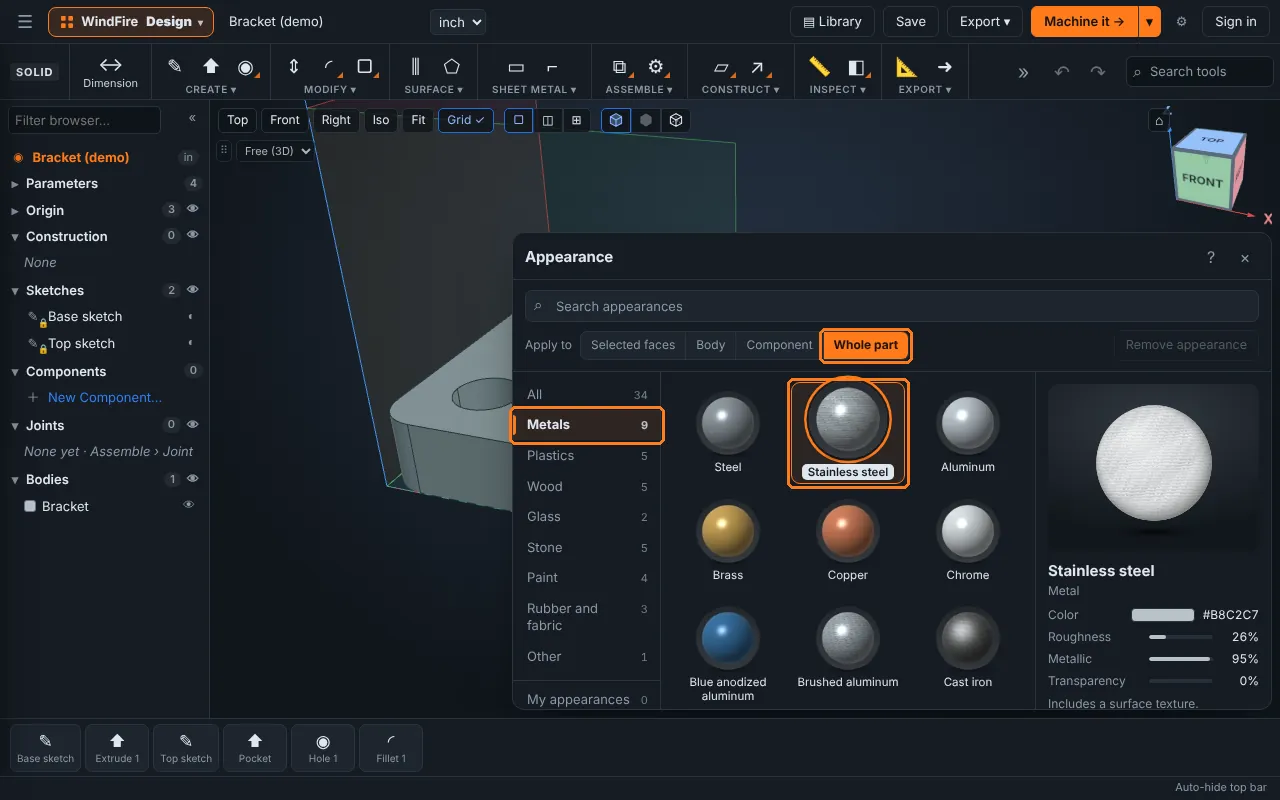
Open Appearance from Modify or Search tools. Browse by category (Metals, Plastics, Wood, Glass, Stone, Paint, Rubber and fabric, My appearances, In this design) or type in the search box. Choose what changes under Apply to: Selected faces, Body, Component or Whole part. With nothing selected, Whole part is chosen; when you select faces or a body, the target follows your selection. Double-click a finish, press Enter, use the Apply button in the details pane, or drag the finish onto the model.


Control what changes
A face finish takes precedence over a body finish. A body finish takes precedence over a component finish. Use Remove appearance to reveal the inherited finish. Appearance leaves physical material and density unchanged.
Edit and reuse
Choose a finish under In this design to adjust color, roughness, or texture. Save appearance updates every object using that finish. Use Duplicate for selection to edit just that selection. Applied textures are saved with the design. Add to My appearances to reuse a finish in another project. Under Surface layers, sliders with a small live preview add a clear coat (gloss paint, glaze), a brush direction for brushed metal, a sheen for fabric and rubber, the reflection strength and color, and for glass a thickness with its tint color and distance. A finish saved before these layers existed keeps its look until you change one of them.
Keyboard
Arrow keys move through the finishes, Enter applies the highlighted finish, and Escape closes the panel. From the search box, press the down arrow to reach the grid. The details pane shows a larger preview with the color, roughness, metallic and transparency values.
In Render
Render has the same appearance browser in its Appearances tab. Click a part or a face in the view, or pick a part in the Model list, then apply a finish to the selected face, the part or the whole model. Those changes belong to the Render scene and are saved with it; they do not change the design.
Render it and Animate it
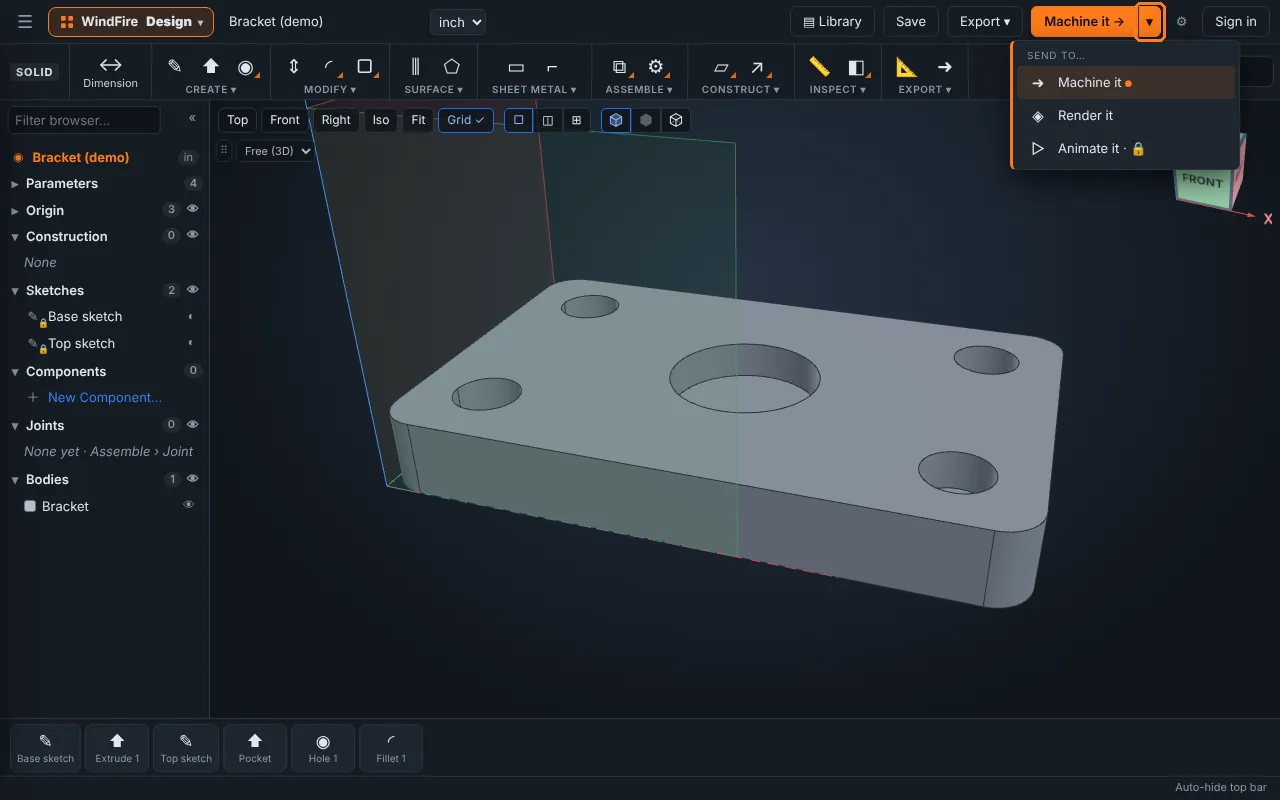
To see your finishes in a rendered image or an animation, open the ▾ beside Machine it (Send to…) and choose Render it or Animate it. Animate it is also in the Export ▾ menu and in the Export group of the toolbar. Render it sends the design with its finishes; Animate it takes their colours. What you change there belongs to the render scene or the animation and does not change the design. A 🔒 after a command means that module is not in your plan.